

Selling a premium ebook, sending a report to a client, or sharing an internal document through your website? Then you need to password protect PDF files before they go live. Many site owners upload a PDF, paste the link, and assume the job is done. In reality, that link can be copied, forwarded, and opened by people who were never meant to see the file.
Here is the catch. When you upload a PDF to the WordPress Media Library, WordPress gives it a public direct URL. Anyone who gets hold of that address may open or download the document, even if the page that links to it is locked. Once a copy leaves your site, you lose control over where it ends up.
In this guide, you will learn four practical ways to password protect PDF files in WordPress, the real difference between page protection and file encryption, the pros and cons of every method, and which option suits your content best. You can also browse more WordPress plugins and apps that help you manage and secure digital content.
Why You Should Password Protect PDF Files on Your WordPress Site
Not every PDF is sensitive, but many are valuable. Locking them down helps you:
- Keep premium ebooks, courses, and paid guides away from non-paying visitors.
- Share private client reports, contracts, and proposals with the right people only.
- Protect internal business documents such as price lists, manuals, and strategy decks.
- Limit unauthorized sharing of research, whitepapers, and gated lead magnets.
- Build trust with clients who expect their files to be handled carefully.
Keep one thing in mind: no browser-based method is completely unbreakable. A determined person can always screenshot or photograph what appears on a screen. The goal is not perfection. The goal is to make unauthorized access difficult enough that casual sharing stops and serious risks are covered by stronger layers.
Does WordPress Let You Password Protect a PDF Natively?
Not really. WordPress includes a built-in feature to protect a post or page with a password, which you can read about in the official WordPress documentation. That feature locks the page, not the files linked inside it.
Imagine you place a PDF download link on a password-protected page. Visitors must enter the password to see the link, which sounds secure. But if somebody already knows, or later discovers, the direct file address in your uploads folder, they can open the PDF without ever seeing the locked page.
So if you truly want to password protect PDF content, you need to secure the file itself, control access to it, or deliver it through a controlled viewer. The four methods below show you how.
Password Protection vs. Encryption vs. Page Protection
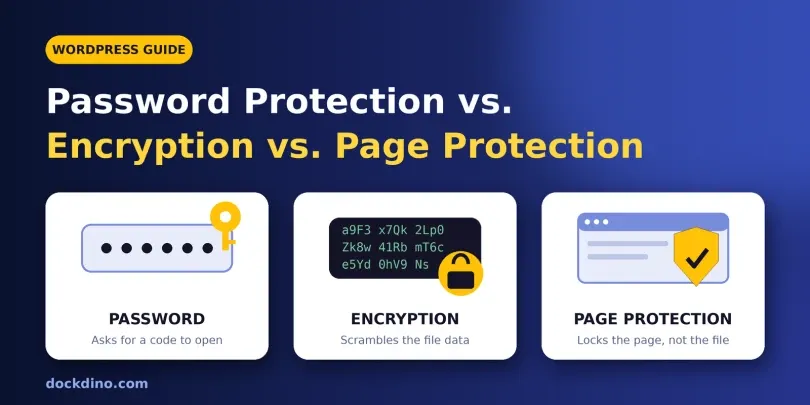
These terms are often mixed up, so here is a quick breakdown.
Password protection. A user must type a password before the document opens. It is simple and works well for sharing a file with a known group of people.
PDF encryption. The contents of the file are scrambled so they cannot be read without the right credentials. Most PDF tools also let you set permissions that limit printing, copying text, or editing. Choose a modern encryption standard such as AES-256 when your software offers it.
WordPress page protection. This controls who can view a page or post. It does not stop someone from reaching the PDF if they know its direct link.
Controlled viewers. A viewer displays your document inside the browser and lets you decide which options visitors see, such as download or print buttons.
The strongest setups combine more than one of these.
Method 1: Password Protect the PDF Before Uploading It
The most direct way to password protect PDF files is to lock the document before it ever reaches WordPress. Because the protection lives inside the file, it travels with every copy.
Steps:
- Open your PDF in a PDF editor or creator that supports security settings.
- Go to the document protection or security menu.
- Choose the option to add a password or encrypt the document.
- Create a long, unique password.
- Set permissions, such as blocking editing, printing, or copying.
- Save the protected PDF.
- Upload it to the WordPress Media Library or share it through your preferred delivery method.
Pros:
- Protection stays with the file, even after it is downloaded.
- Works without any WordPress plugin.
- Easy to do, even for beginners.
- Suitable for sending documents by email as well as hosting them online.
Cons:
- The file can still be downloaded and forwarded along with its password.
- You must share the password separately, which adds manual work.
- Changing the password later means re-uploading a new version.
- Permission settings such as no-printing can be bypassed by some third-party tools.
Method 2: Restrict Access with Protected Pages, Memberships, or Logins
Another way to guard your PDFs is to control who can reach the content around them. You can place documents inside:
- A password-protected WordPress page or post.
- A members-only area.
- A private client portal.
- A paid course or premium content section.
This route is ideal when you care about who gets access, for example paying customers or approved clients, rather than about locking the file itself.
Pros:
- Easy to manage many users at once.
- Works well for subscriptions, courses, and client areas.
- Access can be granted or removed without editing the PDF.
- Fits naturally into a WordPress workflow.
Cons:
- A protected page alone does not secure the uploaded file; the direct URL may still work.
- Shared passwords tend to circulate once multiple people know them.
- Membership tools may add cost and setup time.
- Not enough by itself for highly confidential documents.
For better results, pair this method with Method 1 or Method 3.
Method 3: Restrict Direct File Access at the Server Level
If you want real control over the uploaded file, consider blocking direct public access to it. Common approaches include storing documents in a protected folder, using server rules to deny direct requests, or using a file access-control plugin that checks whether a visitor is logged in or allowed before delivering the file.
The exact setup depends on your hosting environment, so test carefully and ask your host or a developer if you are unsure.
Pros:
- Closes the loophole where anyone with the direct link can open the PDF.
- Lets you tie file access to logged-in users or specific roles.
- Works well for confidential and client-specific documents.
Cons:
- More technical than the other methods.
- A misconfigured rule can break downloads for legitimate users.
- May require a plugin or developer help.
- Does not protect a file after an authorized user downloads it.
Method 4: Display the PDF as a Protected Interactive Flipbook
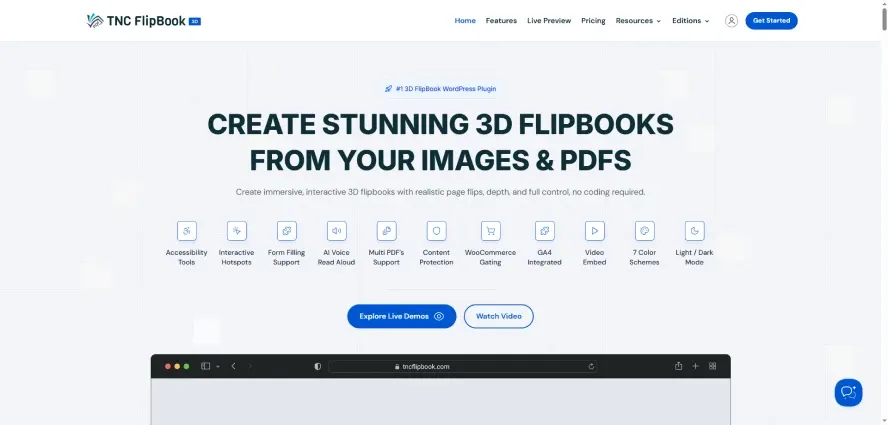
If your document is an ebook, catalog, brochure, magazine, or product guide, handing out the raw PDF is not always the best idea. Showing it inside a viewer lets readers enjoy the content on your site while you keep more control over how it is delivered.
TNC FlipBook 3D is a WordPress plugin that converts PDF documents into interactive flipbooks that visitors read directly in the browser. Instead of linking to a downloadable file, you present a page-turning digital publication.
How to display a PDF with TNC FlipBook 3D:
- Install and activate TNC FlipBook 3D on your WordPress site.
- Create a new flipbook from your dashboard.
- Upload or select the PDF you want to show.
- Adjust the viewer and security settings available in your version.
- Apply access restrictions where your configuration supports them.
- Turn off options you do not want visitors to use, such as download or print.
- Publish the flipbook with the provided shortcode or block.
If you sell digital products, you can also look at FlipBook WooCommerce as another way to showcase PDF-based items in your store.
Pros:
- Visitors read inside your site instead of receiving a raw PDF download link.
- Delivers a more engaging, professional reading experience.
- Lets you hide or disable options such as download and print where supported.
- Great for premium ebooks, catalogs, magazines, and brochures.
- Keeps readers on your website longer.
Cons:
- Hiding buttons or disabling right-click reduces casual copying but is not true document security.
- Not designed as a replacement for encryption on highly sensitive files.
- Available features can vary depending on your plan and settings.
- Works best for documents meant to be read, not for files that must be downloaded.
Important security note: Turning off a download button is a deterrent, not a lock. Anyone can photograph or screenshot what is displayed. For sensitive material, use a flipbook together with encryption and access control.
To see whether it fits your project, explore TNC FlipBook 3D pricing and features.
Quick Comparison: Which Method Should You Choose?
- Method 1 (password inside the PDF): Best for files that will be downloaded or emailed.
- Method 2 (page, membership, or login): Best for managing groups of users, courses, and client areas.
- Method 3 (server-level access control): Best for confidential files that must not be reachable through a public link.
- Method 4 (interactive flipbook): Best for premium ebooks, magazines, catalogs, and brochures read online.
For sensitive content, mix methods. For example, encrypt the PDF, place it behind a member login, and display it through a controlled viewer.
Pros and Cons of Password Protecting PDF Files
Before you decide how far to go, here is the overall picture.
Pros:
- Adds a clear barrier against casual, unauthorized access.
- Helps protect revenue from paid ebooks and premium downloads.
- Supports client confidentiality and professional credibility.
- Lets you restrict printing, copying, and editing in many PDF tools.
- Quick to apply, often within minutes.
Cons:
- Passwords can be shared, guessed, or lost if they are weak or handled carelessly.
- Authorized users can still download and redistribute the file in many setups.
- Permission restrictions are not an absolute guarantee against copying.
- Visitors may find password prompts inconvenient, which can reduce engagement.
- You need to manage and update passwords over time.
Password protection is a strong first layer, but it works best as part of a wider strategy.
Best Practices to Secure PDF Files in WordPress
Use strong, unique passwords. Combine uppercase and lowercase letters, numbers, and symbols, and avoid reusing passwords across documents.
Never publish the password next to the file. Send it by a separate channel, such as email or a private message.
Layer your protection. Encrypt the PDF, restrict the page, require login, and control how the document is displayed.
Avoid public links for confidential files. If a document has an open URL, assume anyone with the link can try to reach it.
Match the method to the content. A free guide needs light protection. A signed contract needs far stronger controls.
Review access regularly. Remove users who no longer need access and refresh passwords when team members or clients change.
Use trusted tools. For confidential files, add passwords with reliable offline software rather than uploading sensitive documents to unknown online services.
Frequently Asked Questions About How to Password Protect PDF Files
Can I password protect a PDF in WordPress?
WordPress does not add password protection to PDFs uploaded through the Media Library. You can lock the document before uploading, restrict access through membership or login tools, or display it through a controlled viewer.
How can I password protect a PDF for free?
Many PDF programs let you add a password at no cost or within a free tier. For confidential files, choose a trusted offline tool instead of an unknown website.
Does a password-protected WordPress page protect the PDF file too?
Not necessarily. The page is locked, but the PDF may still open if someone knows its direct URL. Secure the file itself or restrict direct access for stronger protection.
Can users still download a password-protected PDF?
Yes. They can usually download it, but they need the correct password to open it. If you want to reduce direct downloads, a controlled viewer is an alternative.
Can I stop people from editing or printing my PDF?
Some tools let you restrict editing, printing, and copying. These settings are helpful but are not an absolute guarantee, so combine them with encryption and access control.
What is the best way to password protect premium PDFs in WordPress?
It depends on delivery. Encryption suits downloadable files. For ebooks, catalogs, and magazines read on your site, an interactive solution such as TNC FlipBook 3D can offer a more engaging and controlled experience.
Final Thoughts
Knowing how to password protect PDF files in WordPress puts you in control of your most valuable documents. If readers need to download the file, start with password-protected, encrypted PDFs. If you want to manage who gets in, add page, membership, or login restrictions. For confidential files, block direct access at the server level. And for premium publications meant to be read online, an interactive viewer like TNC FlipBook 3D gives you a polished alternative to a plain download link. The smartest approach is rarely a single tool, so combine password protection, encryption, access control, and the right presentation for each document, and your PDFs will be far safer than a bare upload ever could be.
This guide was researched and written by the Dockdino Team to help WordPress users understand PDF security and choose an approach that fits their needs. If you have questions, feedback, or suggestions, please reach out through our Contact page.