

If you share premium ebooks, private client documents, business reports, or other sensitive PDFs on your WordPress website, protecting those files should be a priority. Simply uploading a PDF and sharing its link can make it easier for unauthorized users to access or download your content.
When you upload a PDF through the WordPress Media Library, WordPress generally creates a direct URL for the file. Anyone who obtains that URL may be able to view or download the PDF, depending on how your website is configured. Once someone has a downloaded copy, it becomes much harder to control how that file is shared, stored, or modified.
This is why learning how to password protect PDF files can be useful. With the right combination of password protection, encryption, and access controls, you can have greater control over who can access your documents and how they are distributed. You can also explore relevant WordPress plugins and apps that add extra functionality for managing and protecting digital content.
In this guide, you will learn different ways to password protect a PDF in WordPress, understand the difference between password protection and encryption, and explore how interactive solutions such as TNC FlipBook 3D can provide an alternative way to display protected documents online.
Table of Contents
Why Password Protecting PDF Files in WordPress Matters
A standard PDF uploaded to the WordPress Media Library can often be accessed through its direct file URL. Simply placing that PDF inside a restricted or password-protected page does not always provide complete protection for the actual file.
For example, someone who already knows the direct PDF URL may potentially access the file without visiting the protected page. Depending on the type of content you publish, password protection can help you:
- Restrict access to private or premium documents.
- Add an extra layer of protection before users open a PDF.
- Control who can access client reports and internal files.
- Protect premium ebooks, guides, and downloadable resources.
- Reduce unauthorized access to sensitive documents.
However, it is important to understand that no browser-based protection method can guarantee that a determined user will never copy or capture content. The best approach is to use multiple layers of security based on how sensitive your document is.
Can WordPress Password Protect a PDF Directly?
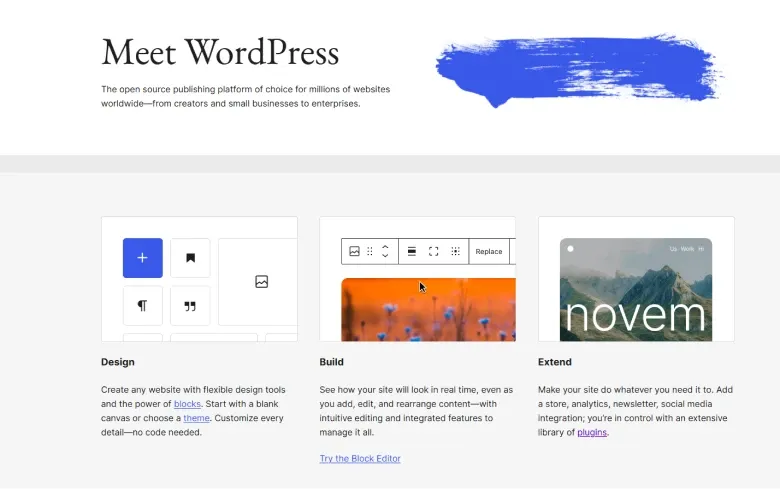
WordPress allows you to password protect posts and pages, but that does not necessarily mean the PDF file itself is password protected. You can learn more about how WordPress password-protected content works in the official WordPress documentation.
For example, you can create a password-protected page containing a link to a PDF. Visitors would need to enter the password to access that page. However, if someone discovers the direct URL of the uploaded PDF, the file may still be accessible depending on your website’s configuration.
For stronger protection, you may need to:
- Add a password directly to the PDF before uploading it.
- Encrypt the PDF file.
- Use file access-control tools.
- Restrict downloads based on user permissions.
- Display the PDF through a controlled document viewer.
The right option depends on how you plan to share the document.
Password Protection vs. PDF Encryption: What’s the Difference?
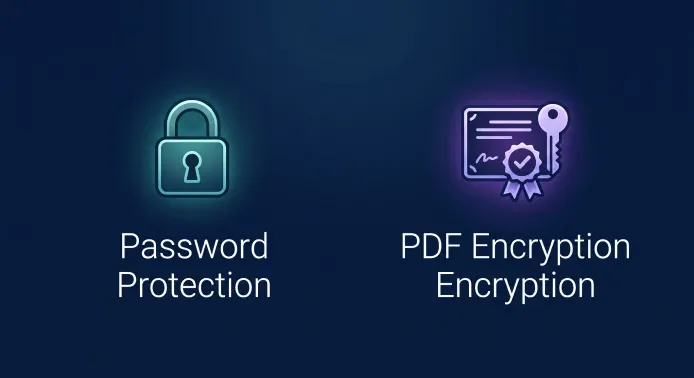
Password protection and encryption are often used together, but they are not exactly the same thing.
Password Protection
Password protection usually requires a user to enter a password before opening or accessing a document. This is useful when you want to share a file with a specific group of people while preventing unrestricted access.
PDF Encryption
When you password protect PDF files using encryption, the document data is encoded so that the content cannot be properly accessed without the required authorization. Depending on the PDF software you use, encryption settings may also allow you to restrict certain actions, such as editing, printing, or copying text.
WordPress Page Protection
WordPress page protection controls access to a page or post. It can be useful for restricting content, but it does not automatically guarantee that the uploaded PDF file itself cannot be accessed through a direct URL.
Protected PDF Viewers
A protected document viewer can provide additional control over how users interact with a PDF on your website. For example, you may be able to display a document inside a viewer while limiting options such as downloading or printing.
Method 1: Password Protect the PDF Before Uploading
One of the most straightforward ways to password protect a PDF is to secure the document before uploading it to WordPress. You can use compatible PDF software to add a password and configure available security permissions.
How to Add a Password to a PDF
- Open the PDF using a compatible PDF editor or creator.
- Find the document security or protection settings.
- Choose the option to add password protection or encryption.
- Create a strong password for the document.
- Configure available permissions, such as editing or printing restrictions.
- Save the protected PDF.
- Upload the file to your WordPress website.
With this method, users who download the file may need the correct password before they can open it. Password protecting PDF files this way secures the document itself, but it does not necessarily prevent the file from being downloaded or redistributed. If the direct PDF link is publicly accessible, users may still be able to obtain and share a copy of the protected file.
If you’re looking for a more interactive way to present PDF-based products in WooCommerce, you can also explore FlipBook WooCommerce as an alternative approach.
Method 2: Password Protect Access to the PDF in WordPress
Another approach is to control who can access the content surrounding your PDF. For example, you can place a document inside:
- A password-protected WordPress page.
- A members-only section.
- A private client portal.
- A restricted course or premium content area.
This approach can work well when your primary goal is to control access to the content rather than encrypt the actual PDF file. However, you should remember that page protection and file protection are different things. If your PDF is highly sensitive, relying only on a protected WordPress page may not be enough. Combining access control with document-level protection can provide a stronger security setup.
Method 3: Display Your PDF as a Protected Interactive Flipbook
If your PDF is an ebook, catalog, brochure, magazine, product guide, or premium publication, allowing visitors to download the raw file may not always be the best option. In these situations, displaying the document directly on your website can provide a better user experience while giving you more control over how the content is accessed.
This is where an interactive solution like TNC FlipBook 3D can be useful. TNC FlipBook 3D allows WordPress users to convert PDF documents into interactive flipbooks that visitors can read directly in their browser. Instead of simply publishing a downloadable PDF link, you can present the document as an interactive digital publication. Depending on the available settings and configuration, you can also control how visitors interact with the flipbook.
How to Display a Protected PDF with TNC FlipBook 3D
- Install and activate TNC FlipBook 3D on your WordPress website.
- Create a new flipbook from your WordPress dashboard.
- Upload or select the PDF document you want to display.
- Configure the available viewer and security settings.
- Set access restrictions where supported by your chosen configuration.
- Disable unnecessary viewer options, such as downloading or printing, when appropriate.
- Publish the flipbook on your WordPress page using the provided shortcode or display method.
Visitors can then view the document directly on your website instead of immediately receiving a raw downloadable PDF link.
Important Security Note
Disabling a download button or right-click functionality should not be considered complete document security. These features can reduce casual copying and provide a more controlled viewing experience, but determined users may still find ways to capture or reproduce content displayed in a browser.
For sensitive documents, password protecting PDF files should be combined with other security measures, such as document encryption, access control, and restricted file distribution. This layered approach can provide stronger protection than relying on a single security feature.
Why an Interactive Flipbook Can Be a Better Option for Premium PDFs
Traditional password protection works well when users need to download and open a PDF file. However, some documents are designed to be consumed visually online rather than downloaded.
For example:
- Premium ebooks
- Digital magazines
- Product catalogs
- Business brochures
- Property presentations
- Online portfolios
- Client presentations
For these types of documents, an interactive flipbook can provide a more engaging experience. Instead of sending visitors directly to a downloadable file, you can keep the reading experience within your WordPress website. This can also help you present your content in a more professional and interactive format.
” TNC FlipBook 3D can be particularly useful when you want to combine PDF presentation with a more controlled on-site reading experience.”
If your goal is to sell premium digital publications or present documents professionally, an interactive flipbook may be a more suitable solution than sharing a standard PDF download link.
Best Practices to Secure PDF Files in WordPress
Password protection is only one part of a broader document security strategy. Here are several best practices you should consider. Depending on your security requirements, you may need additional WordPress tools to manage access, restrict downloads, or control how digital content is displayed. You can explore more WordPress plugins and apps that can help extend the functionality of your website.
Use Strong Passwords
If you password protect a PDF, avoid using simple or easily guessed passwords. Use a combination of:
- Uppercase and lowercase letters
- Numbers
- Special characters
Avoid sharing passwords publicly on the same page where the protected document is available.
Combine Multiple Layers of Protection
For more sensitive content, consider using more than one security method. For example, you can:
- Encrypt the PDF before uploading it.
- Restrict access to the WordPress page.
- Require user login or membership access.
- Control how the document is displayed.
- Limit unnecessary download or printing options.
Multiple layers can provide better protection than relying on a single method.
Avoid Publishing Sensitive Files Through Unrestricted Links
If a confidential document has a publicly accessible URL, anyone who obtains that link may potentially attempt to access the file. Review how your files are stored and distributed before publishing sensitive documents online.
Choose the Right Method for Your Content
Not every PDF needs the same level of protection. A free downloadable guide may only need basic access control, while a private client report may require stronger document encryption. If you need to password protect PDF files for controlled distribution, document-level protection can be a practical option. Similarly, a premium ebook or digital magazine may benefit more from an interactive viewer that allows readers to access the content directly from your website.
When Should You Use TNC FlipBook 3D?
TNC FlipBook 3D can be a useful option if your primary goal is not simply to lock a PDF file but to create a more interactive and controlled reading experience.
It may be particularly suitable for:
- Premium ebooks
- Digital magazines
- Product catalogs
- Brochures
- Paid publications
- Interactive presentations
Instead of treating the PDF as a simple downloadable file, you can transform it into an on-site digital publication. For website owners who want to present premium PDF content professionally while reducing casual access to the raw downloadable file, this approach can offer both presentation and practical access-control benefits.
Explore TNC FlipBook 3D to see whether an interactive flipbook is the right solution for your WordPress PDF content.
Frequently Asked Questions About Password Protecting PDF Files
Can I password protect a PDF in WordPress?
WordPress does not automatically add password protection to PDF files uploaded through the Media Library. You can protect the document before uploading it or use additional access-control and document-display solutions to control who can access the content.
How can I password protect a PDF for free?
You can use compatible PDF software to add password protection before uploading the document to WordPress. For confidential files, consider using a trusted offline tool instead of uploading sensitive documents to an unknown third-party service.
Does password protecting a WordPress page also protect the PDF file?
Not necessarily. A password-protected WordPress page restricts access to the page, but the uploaded PDF may still be accessible if someone knows its direct URL. For stronger protection, consider securing the PDF itself or using additional file access controls.
Can users download a password-protected PDF?
Yes, depending on how the PDF is shared. A password-protected PDF can still be downloaded, but users may need to enter the correct password before opening it. If you want to reduce direct downloads, a controlled document viewer can provide an alternative way to display the content.
Can I prevent users from editing a password-protected PDF?
Some PDF security tools allow you to restrict editing permissions. However, these restrictions should not be considered an absolute guarantee that a downloaded copy can never be modified. Combining editing restrictions with encryption and controlled access can provide stronger protection.
What is the best way to password protect premium PDFs in WordPress?
The best method depends on how you distribute the content. Password encryption can work well for downloadable documents. However, if you want to display premium ebooks, catalogs, or magazines directly on your website, an interactive solution such as TNC FlipBook 3D may provide a more engaging and controlled reading experience.
Final Thoughts
Learning how to password protect PDF files in WordPress can help you take greater control over sensitive and premium content. The right approach depends on how you want users to access your documents. If visitors need to download the file, document-level password protection and encryption may be the better choice. If you want to restrict access through your website, membership and page-level access controls can provide an additional layer of protection.
For premium publications that are better experienced online, an interactive solution such as TNC FlipBook 3D can be a useful alternative to simply sharing a raw PDF download link. The most effective approach is to combine password protection, encryption, access control, and appropriate document presentation based on the sensitivity and purpose of your PDF content.
[…] and flipbook functionality, while advanced features such as WooCommerce integration, gated content, Password Protection, content protection, and analytics may require a paid […]
[…] more WordPress resources, read our guide on how to password protect PDF files in WordPress to learn how to protect sensitive documents. If you run an online store, you can also explore our […]
[…] 5. Privacy and Document Security […]